Providing the ability to manually enter gift card numbers
If you select 'Use magnetic card only' under the 'Options settings' group bar on the 'Type' tab in Maintenance > Payments > Tenders, the only way to manually enter a gift card number, should the card become demagnetized or unreadable, is with manager approval; however, you can give appropriate employees the ability to manually enter a gift card number and bypass the manager approval screen.
To provide the ability to manually enter gift card numbers:
- Select Maintenance > Labor > Pos Access Levels.
- Select an access level from the drop-down list.
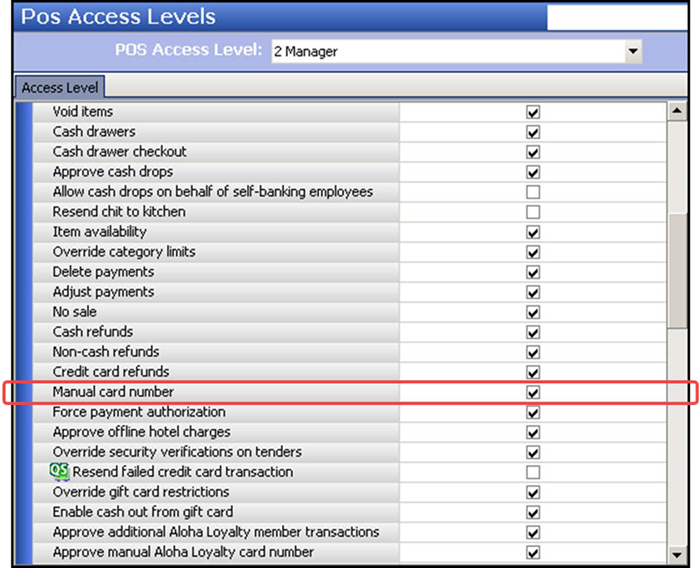
- Under the 'Financial' group bar, select Manual card number to allow employees assigned to this access level to bypass manager approval when attempting to manually enter a gift card number.
- Click Save.
- Repeat this procedure for each access level requiring the ability to manually enter gift card numbers.
- Exit the Pos Access Levels function.
Adding the 'Set Order Screen Panel by Jobcode' event type to an event schedule
Adding the Set Order Screen Panel by Jobcode event type stipulates the panel to appear to employees with designated job codes. How you are using the Event Schedule function determines whether you add this event type to an existing event schedule or add it to a new event schedule you create. For the purposes of this document, we assume you use one event schedule to which you add all events.
To add the 'Set Order Screen Panel by Jobcode' event type to an existing event schedule:
- Select Maintenance > System Settings > Event Schedule.
- Select the event schedule to edit from the drop-down list.
- Select the Events tab.
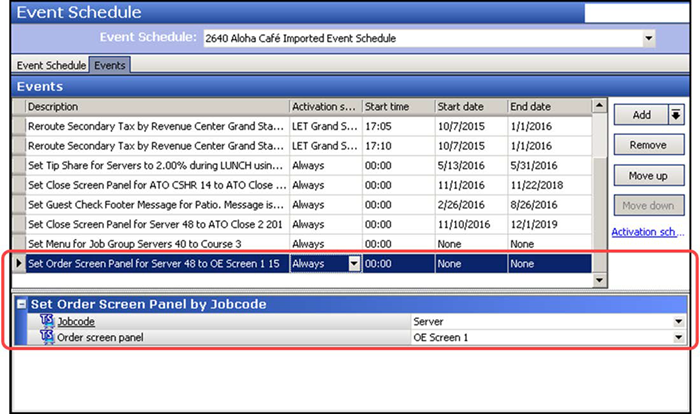
- Click the Add drop-down arrow, select Set Order Screen Panel by Jobcode as the event type, and click OK. The new event appears under the 'Events' group bar.
- Select Always from the 'Activation Schedule' drop-down list. Because the Always activation schedule stipulates to begin at 'start of day,' you cannot edit the 'Start time' in the event definition. This information is ready only.
- Select the date on which you want the event to become active at the store in 'Start date.'
- Select the date on which you no longer want the event to be active at the store in 'End date.'
- Under the 'Set Order Screen Panel by Jobcode' group bar, select the job code for which you want a custom panel to appear from the drop-down list.
- Select the custom panel to appear specifically for the selected job code from the 'Order screen panel' drop-down list. The Events tab reflects your selections under the 'Events' group bar as you make them.
- Click Save.
- Repeat this procedure to configure additional job codes for which you want the panel to appear.
- Exit the Event Schedule function.
Continue to "Refreshing POS data."
After running a data refresh, return to the main "Valutec Gift Cards" page.