Creating Automatic Win-Back Offer Campaigns to Manage Churn
It’s easy to create automatic win-back offer campaigns for customers who are at risk of churning or have already churned with just a few clicks. Follow the steps below to learn how.
For brands with the segment catalog, you can utilize our Lifecycle Segments in other campaigns or communications. To learn how to use these segments in other campaigns, refer to Managing Customer Churn.
Creating Automatic Win-back Offer Campaigns for 'At Risk' Customers
Set up a Win-back Campaign right away by creating a campaign email for 'At Risk Customers,' then follow the steps below and use the Campaign Catalog to quickly create your campaign.
Once a day, the campaign will automatically send a reward to your customers who are determined to be 'At Risk'. These customers will only receive one reward for each instance of being considered 'At Risk' and that reward will expire after the amount of time you specify in the campaign. We recommend that if you’re already sending rewards, you consider giving a reward that is greater than usual since you want to pique their interest with something new or different. Consider that this 'At Risk Win-back Campaign' could be one of the last meaningful touchpoints to win-back your customers before they churn.
To set up a win-back campaign for 'At Risk' customers, follow the steps below:
Step 1: Finding the Campaigns section
Click the Campaigns icon in the left-hand navigation bar.
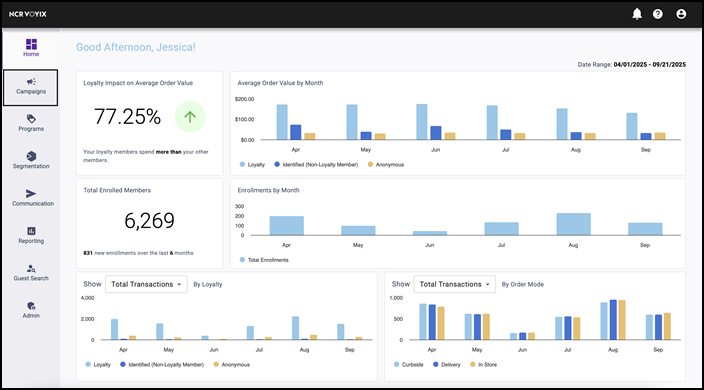
Step 2: Go to the campaign catalog
Depending on your package, click either the Campaign Catalog tab or View Templates on the Campaign Management page to access the Campaign Catalog.
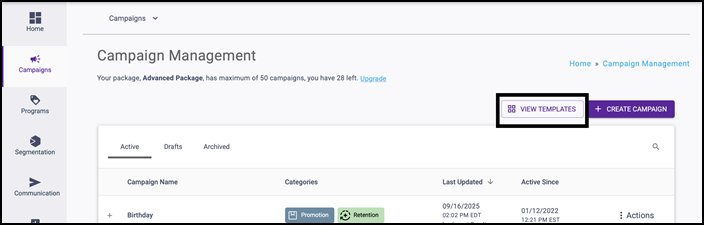
Step 3: Click the desired campaign
- Click the Automatic Win-back Offer for At Risk Customers tile.
- Click the USE TEMPLATE button. This will allow you to get started with creating this type of campaign easily.
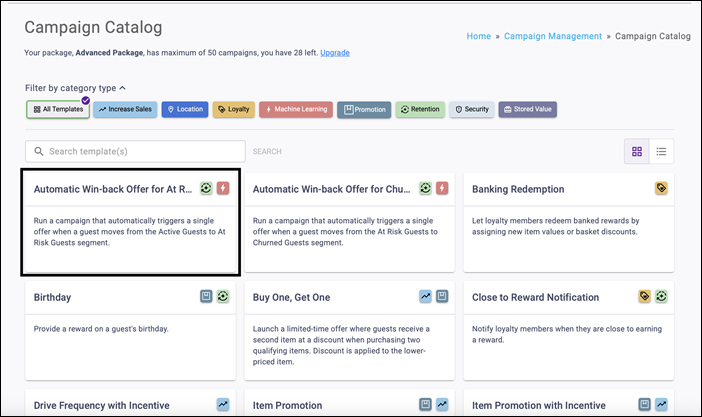
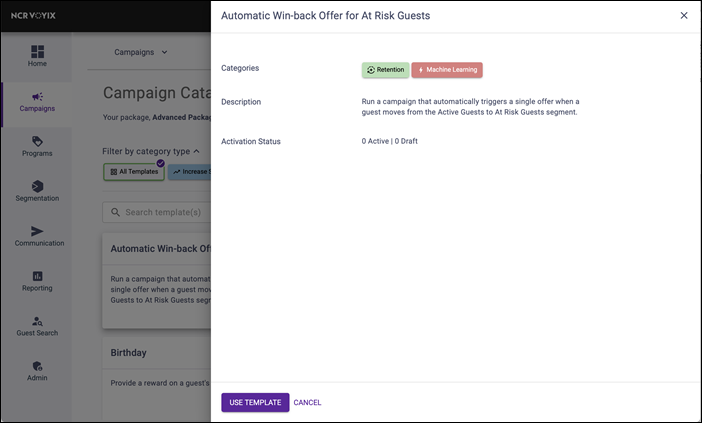
Step 4: Create your campaign
Create your campaign by walking through the process and determining key elements such as:
-
Campaign Name
-
Loyalty vs Non-Loyalty Member Eligibility
-
Reward Type
-
Reward Amount
-
Reward Expiration
Note: Select a rolling expiration date to ensure customers receive rewards appropriately, since they will earn them at different points in time.
-
Campaign Application Limits
-
Campaign Email to be Used
Step 5: Save as draft or save and publish
Save your campaign as a draft or publish it immediately if you're ready to go live.
Creating Automatic Win-back Offer Campaigns for 'Churned' Customers
Set up a Win-back Campaign right away by creating a campaign email for 'Churned Customers' and using the Campaign Catalog to quickly create your campaign.
Once a day, the campaign will automatically send a reward to your customers who are determined to be 'Churned'. These customers will only receive one reward for each instance of being considered 'Churned' and that reward will expire after the amount of time you specify in the campaign. We recommend that you elevate this reward to be even greater than the one for 'At Risk' guests. Consider that this 'Churned Win-Back Campaign' could be one of the last meaningful touchpoints to win-back your churned customers.
To set up a win-back campaign for 'Churned customers', follow the steps below:
Step 1: Finding the Campaigns section
Click the Campaigns icon in the left-hand navigation bar.
Step 2: Go to the campaign catalog
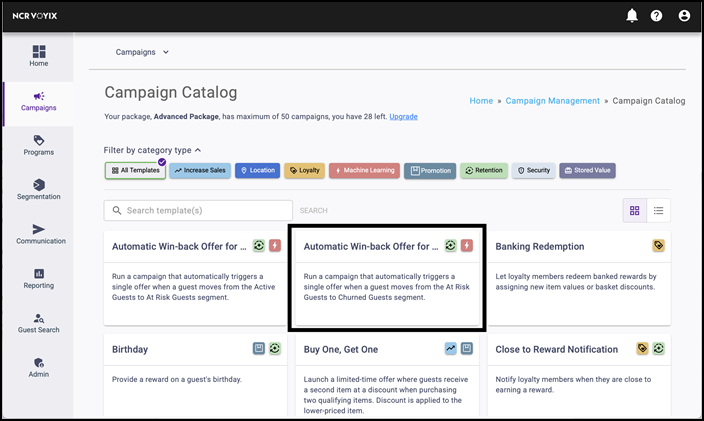
Depending on your package, click either the Campaign Catalog tab or View Templates on the Campaign Management page to access the Campaign Catalog.
Step 3: Click the desired campaign
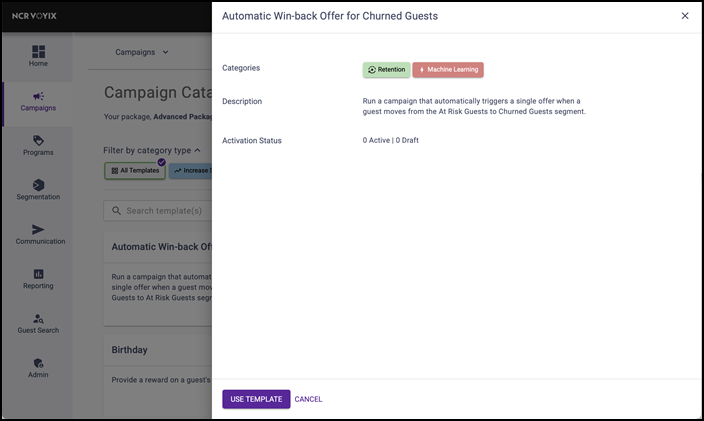
- Click the Automatic Win-back Offer for Churned Customers tile.
- Click the USE TEMPLATE button. This will allow you to get started with creating this type of campaign easily.
Step 4: Create your campaign
Create your campaign by walking through the process and determining key elements such as:
-
Campaign Name
-
Loyalty vs Non-Loyalty Member Eligibility
-
Reward Type
-
Reward Amount
-
Reward Expiration
Note: Select a rolling expiration date to ensure customers receive rewards appropriately, since they will earn them at different points in time.
-
Campaign Application Limits
-
Campaign Email to be Used
Step 5: Save as draft or save and publish
Save your campaign as a draft or publish it immediately if you're ready to go live.