Creating a scheduled multichannel message
Multichannel Messages enable the creation and scheduling of both marketing emails and mobile messages. Alternatively, recipients receive a single message based on channel preference when using AI Channel Optimization. For scheduled messages, you define the recipients during setup, whether targeting all customers or a selected segment.
Steps to send a scheduled Multichannel message
Step 1: Navigate to the Multichannel section
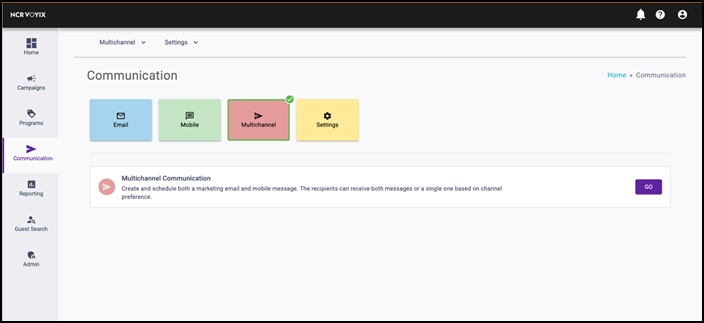
Click the Communications icon in the left-hand navigation, select the Multichannel tile, and click Go. Click Create a Scheduled Multichannel to begin creating your message.
Step 2: Name the message
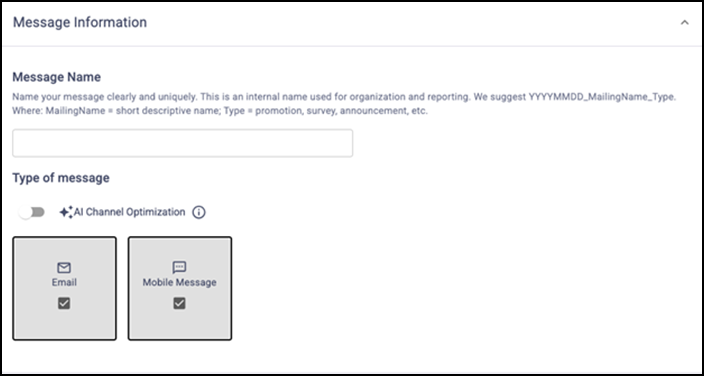
Determine a unique name for the message for internal use.
Activating AI Channel Optimization
Toggle AI Channel Optimization at this step. When enabled, the system delivers either an email or a mobile message based on the channel each customer engages with most frequently.
Step 3: Create the email
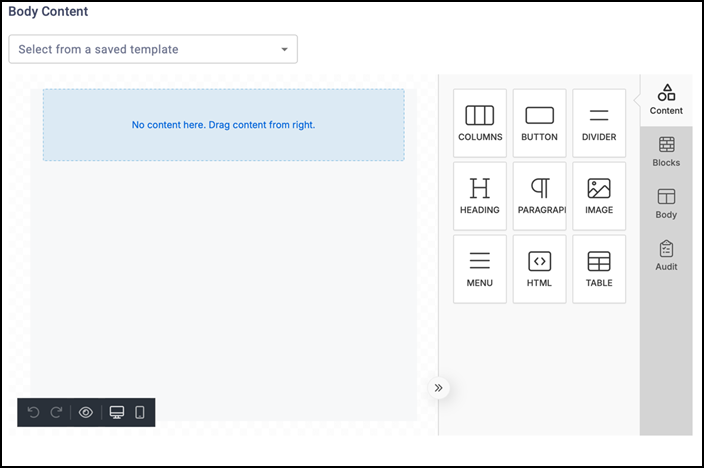
The system displays the option to create the email first. Continue creating the scheduled email using the standard process.
Step 4: Create the mobile message
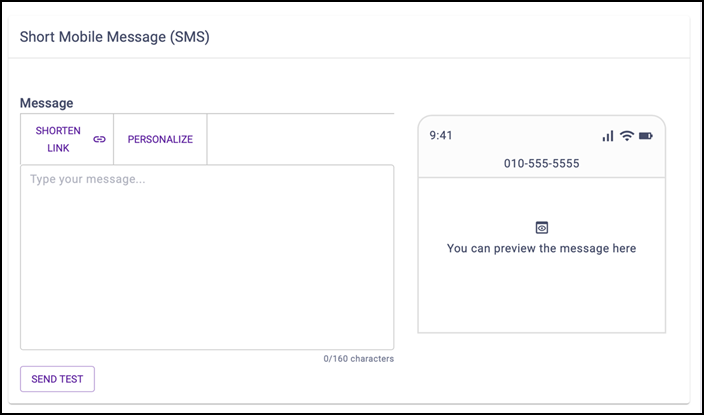
Scroll down to access the option to create the mobile message and continue creating it using the standard process.
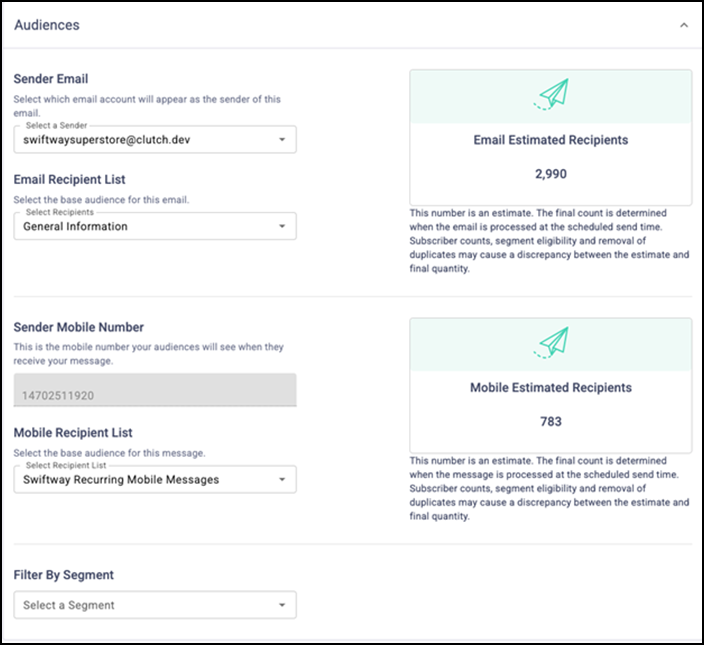
Step 5: Define the recipients
Select the recipients for these messages.
-
For the email section:
- Select a sender email. If multiple senders exist, choose the sender to use for this message. This name appears as the sender to recipients, such as Barista Joe, Brooklyn Brunch Cafe, or Management at le Fanci Restaurante. Select the option that best represents your brand.
- Select an email recipient list. Choose who receives the email, whether all recipients or only those in a specific segment.
-
For the mobile message section:
- Select a Mobile Recipient List.
- Optionally, select a segment.
Step 6: Schedule a send time
Select from four available send‑time options.
-
Optimized to Customer's Preferred Time: The system delivers the mobile message during a time when the recipient is more likely to check text messages. Mobile messages can be scheduled only between 8:00 AM and 8:00 PM in the recipient's time zone. The system does not send messages scheduled outside this time range. Message processing begins at the selected time, and delivery may vary based on processing volumes and can take up to one hour.
-
Send Simultaneously: The system starts processing all messages at the selected time. Schedule messages at least 65 minutes in advance.
-
Right away: All messages start processing immediately upon submission and begin sending in approximately one hour.
-
Send Locally: Messages start processing at the selected time based on the recipient's time zone, determined by their ZIP Code. If the ZIP Code is unavailable, the system uses the Central Time Zone. Schedule messages at least 65 minutes in advance.
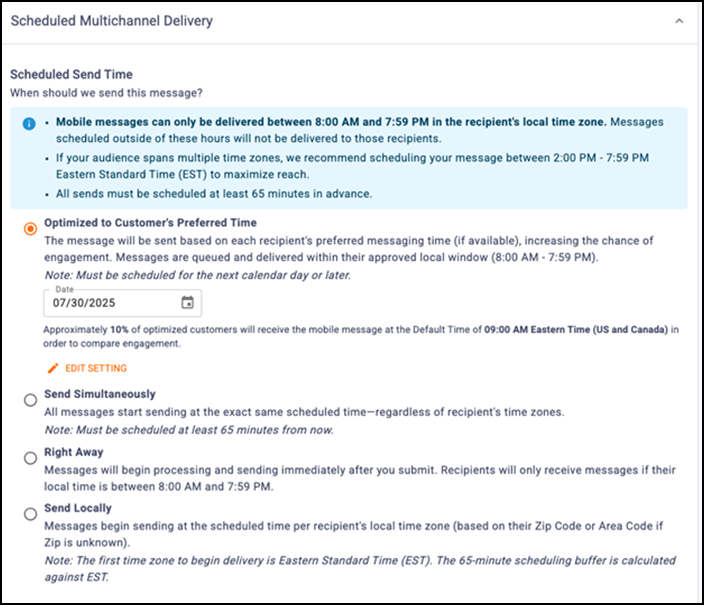
Note: Mobile messages can be delivered only between 8:00 AM and 7:59 PM in the recipient’s local time zone. Messages scheduled outside these hours are not delivered. For audiences across multiple time zones, schedule messages between 2:00 PM and 7:59 PM Eastern Standard Time (EST) to maximize reach. Schedule all sends at least 65 minutes in advance.
Step 7: Save or send
If the message is still in progress, click Save as Draft to return to it later. To send the message, click Send.