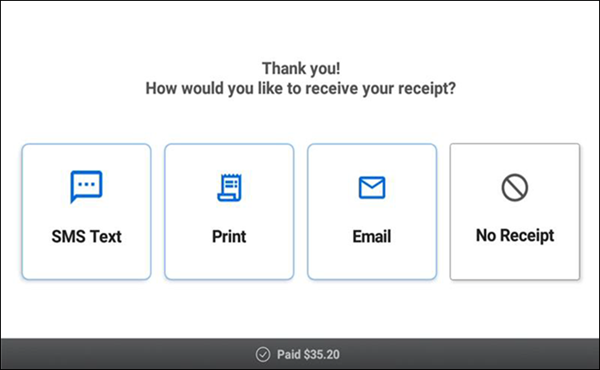
Redeeming Loyalty Rewards using CFD
Customer can redeem consumer marketing rewards directly from the customer facing display (CFD) screen, when configured in Back Office. The CFD screen is enhanced with a split-view showing order entry view on the left and loyalty reward redemption on the right.
NOTE: To redeem loyalty rewards directly from the CFD, you must configure in Back Office. For detailed steps, refer to Implementing a loyalty program.
To redeem loyalty rewards:
- Ensure that the guest check is active with items added to the order entry screen of POS. The CFD displays all the items added to the order entry ticket.
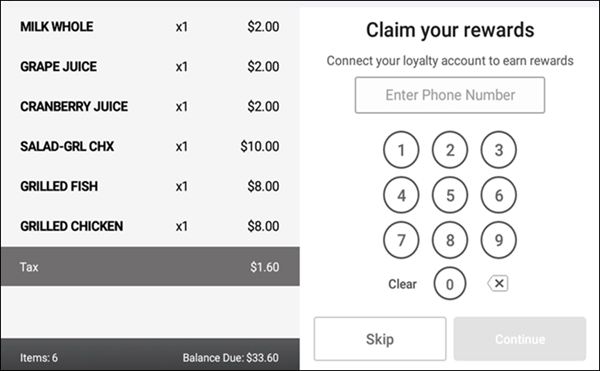
- Enter the phone number.
If you are a new customer without a loyalty account, the system prompts for account creation automatically or provides the option to sign up instantly based on the loyalty program configured.
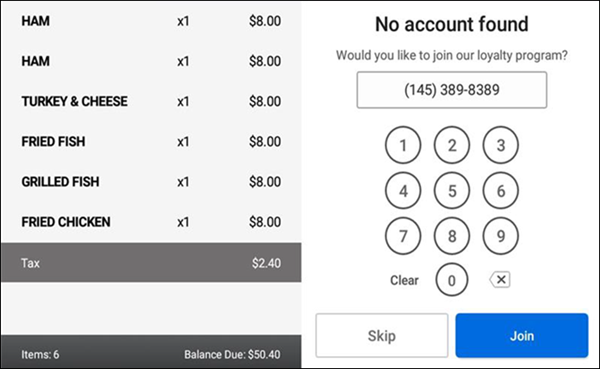
- Tap Join to continue.If you are an existing customer, the system populates the account details and displays the available loyalty rewards.
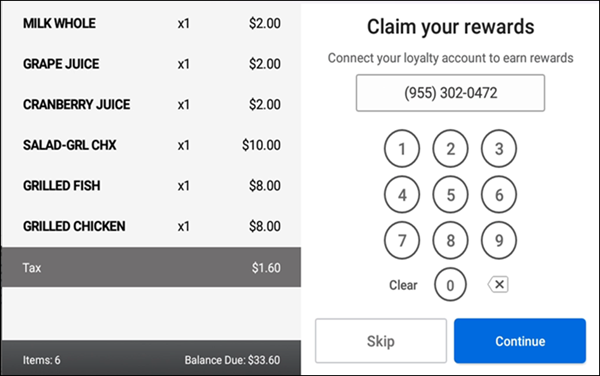
- Tap Continue.
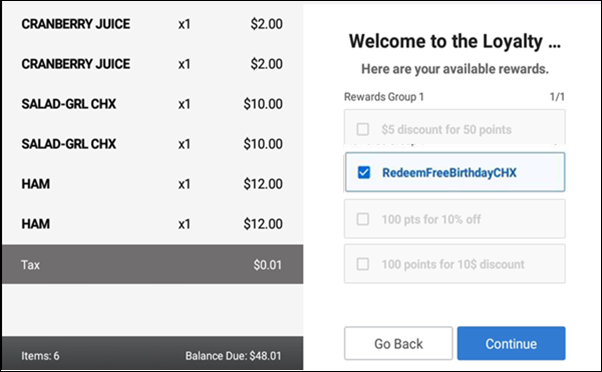
- Select a reward from the list of grouped rewards.
- Tap Continue or Go Back to look up for a different loyalty account.The system applies the loyalty discount to each item and appears as a line item under the respective item on the guest check. At this point, you can switch controls between CFD and POS.
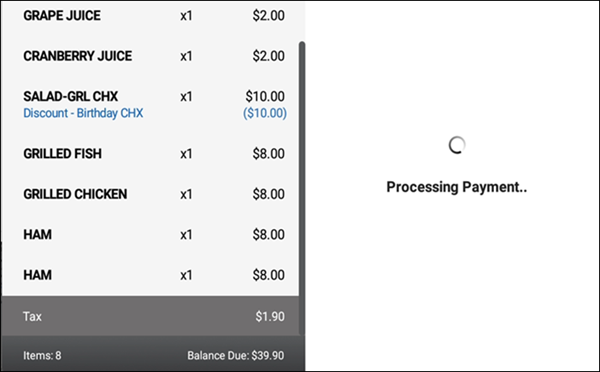
- Complete the payment process on CFD. The reward status of the customer appears on the receipt (printed and/or emailed).
- Select the desired amount of tip on Tip Select screen and desired amount of donation on the Donation screen when paying using credit card.
To take advantage of some additional loyalty features available to the customer, make sure you have digital signature capture turned on and the customer does not select the Email Receipt option on the signature screen. When these conditions are met, the customer signs on the CFD screen, and taps Accept. The below screen appears.