Uploading images using Image Manager
Use the Image Manager screen to upload a company logo for display on customer receipts and an animated GIF on the Customer Facing Display (CFD) to highlight tip recognition.
Uploading a customer logo
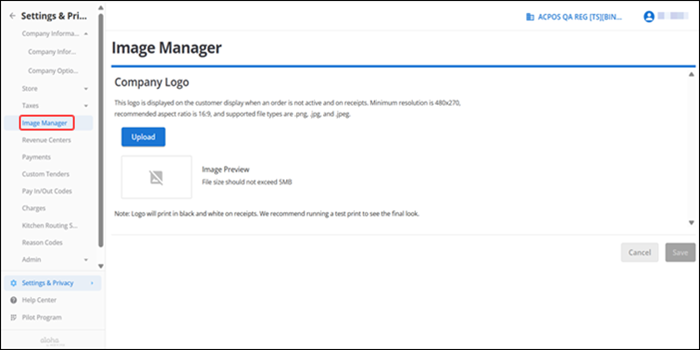
Access Settings & Privacy > Image Manager to upload a company logo to print in the header section of the customer receipt. Once uploaded, the image automatically synchronizes across all available POS terminals (PX10, PX15, Axium AX5), the customer facing display (CFD), and prints on the customer receipt. The function uses Company View which exposes options that are not available to you when you log in to a specific site; it is read only.
The supported file formats are JPG, PNG, and JPEG. The recommended aspect ratio is 16:9 with a minimum resolution of 480*270. The file size should not be more than 5MB.
To upload a customer logo:
-
Log in to Back Office using Company View. (All Stores).
-
Click Upload to upload and assign a Company Logo.
-
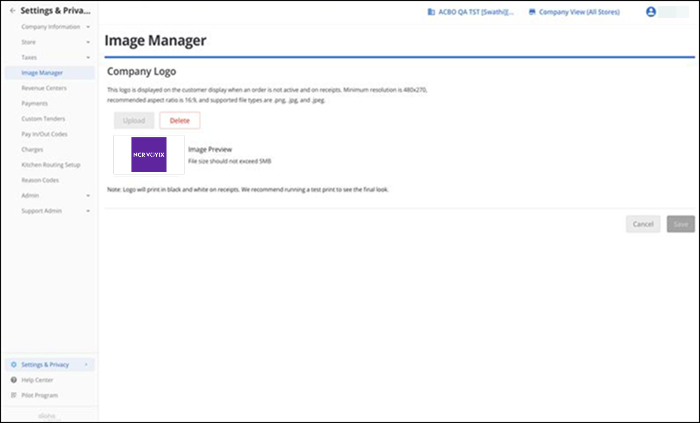
Select the logo to add. A preview of the image appears.
-
Click Delete to remove the uploaded logo, or a logo in use, if necessary.
-
Click Save to save the changes.
Note: We recommend that you perform a test print of the logo. The customer logo prints in black and white.
Uploading Tip Animation Image
You can display an animated GIF on the customer facing display (CFD) when a customer offers a tip. The animated GIF appears on the tip screen to convey appreciation.
The recommended aspect ratio is 16:9 with a transparant back ground up to 2 seconds.
To upload a tip animation image:
- Log in to Back Office using Company View. (All Stores).
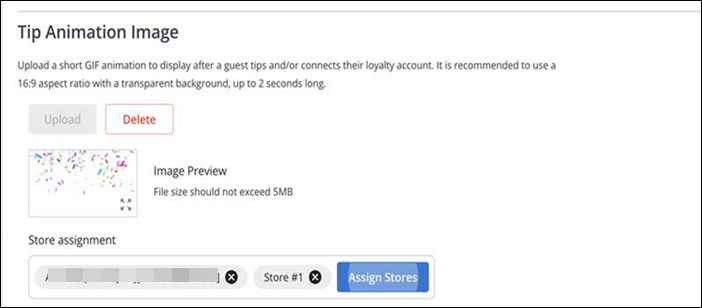
- Click Upload to upload and assign an animation image.
- Select the animation image to add. A preview of the animated image appears.
- Click Delete to remove the uploaded animation image, or an animation in use, if necessary.
- Click Assign Stores to select the desired stores for which animation image appears.
- Click Save to save the changes.